How do I download an offline map?
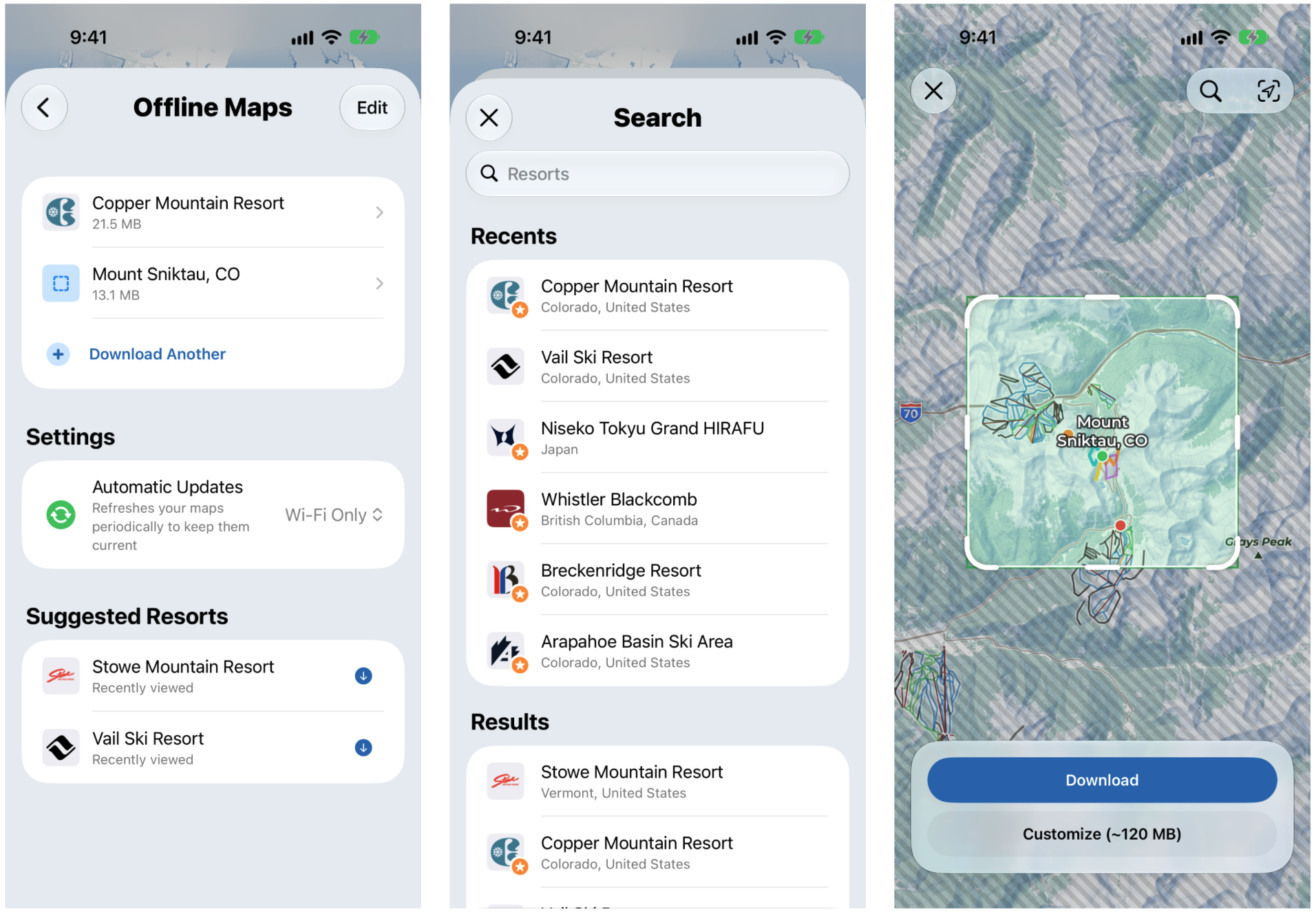
Offline maps let you keep using the map, and your overlays, when you're out of signal. To find them, tap your profile picture at the top right of the Guide tab to open your account, then tap Offline Maps. You'll see your downloads and their sizes, plus suggested resorts you've recently viewed. Tap Download Another to add one. There are two types:
- Download a Resort: our resort maps, the same as before. You'll see your recent resorts, or you can search for any resort. Included with Slopes Plus. Resort downloads now include elevation data too, so 3D maps, altitude graphs and overlays (with Slopes Explore) work without signal.
- Backcountry Region: a custom area you choose anywhere. Requires Slopes Explore.
Downloading a backcountry region
- Tap your profile picture to open your account, then tap Offline Maps
- Tap Download Another, then Backcountry Region
- Search for a place, then drag the corners and edges of the square to cover the area you need
- Tap Customize to choose what to include and see how much space it will use, then tap Download
You can also jump straight to Download Region from any place, route, area or collection.
If your regions overlap, they share map files, so you won't download the same area twice. When you edit a region, Slopes shows you what will be added and removed.
What to include
- Elevation Data: required. This powers the overlays, and they won't work offline without it. Most overlays work fully offline, at a slightly lower resolution than when you're connected.
- Slopes Topo Maps: required.
- Satellite Maps: optional. It's much bigger than the other two, so you can turn it off to save space.

💡Download before you go, while you're on WiFi. Then try putting your phone in airplane mode to check everything you need works.