Navigating the Guide tab with Slopes Explore
The Resorts tab is now the Guide tab. You'll find it in the tab bar at the bottom of the screen, between Logbook and Friends. To start recording, tap the round button next to the tab bar.
Resorts and Library
At the top of the Guide tab there are two segments:
- Resorts: our resorts. You'll see the resorts you follow with their forecast, or popular and nearby resorts if you haven't picked any yet. If you're at a resort, it always shows at the top. Tap the sort button (the up and down arrows) at the top left, then Customize List to add, remove and reorder the resorts you follow. The same button sorts them by Your Order, A–Z, Today + Recent Snow or Upcoming Snow.
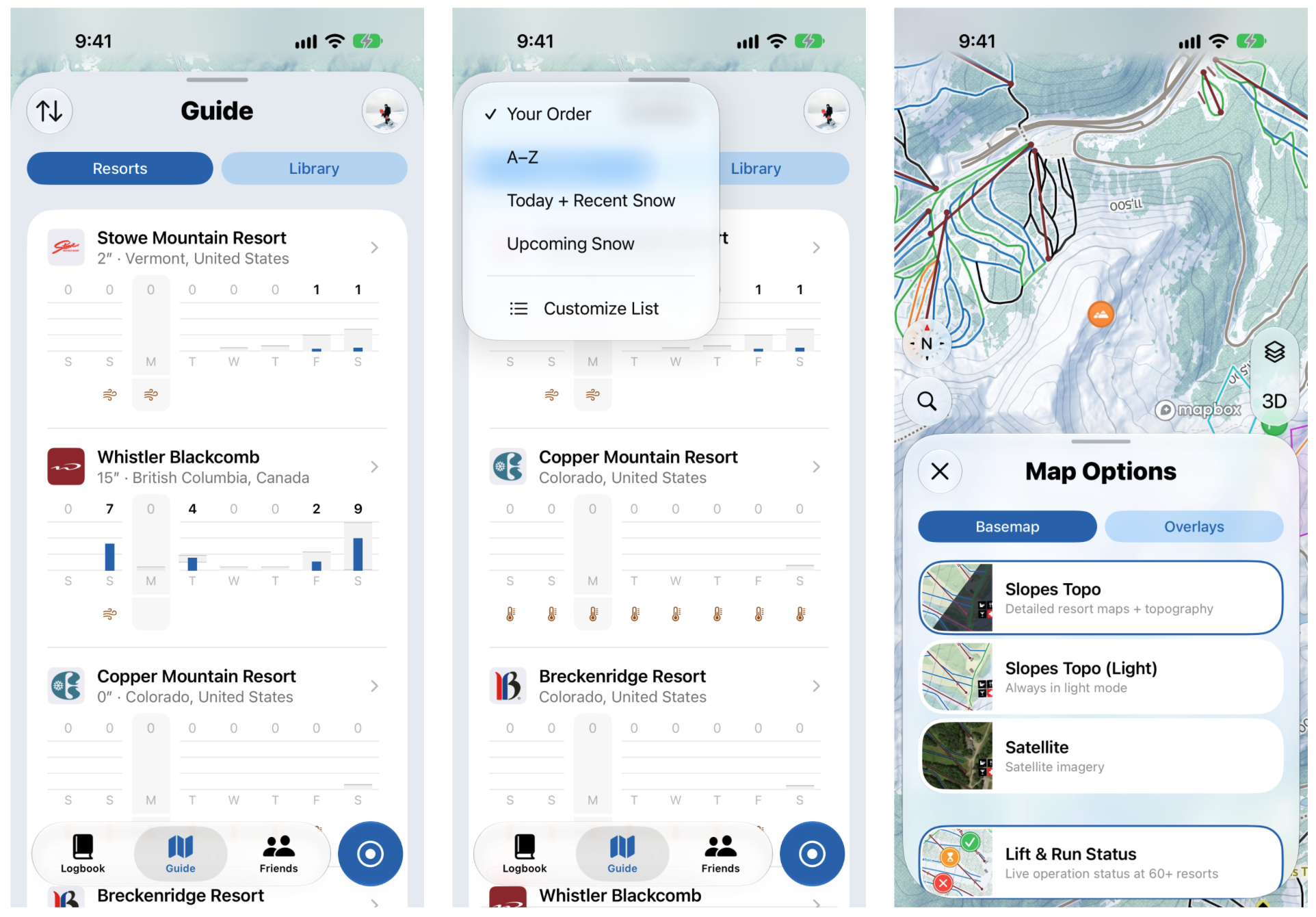
- Library: your own map data. You'll see your Recents, then your Routes, Places, Areas and Collections. Choosing Library also shows your own map data on the map. To add something new, tap + at the top left.
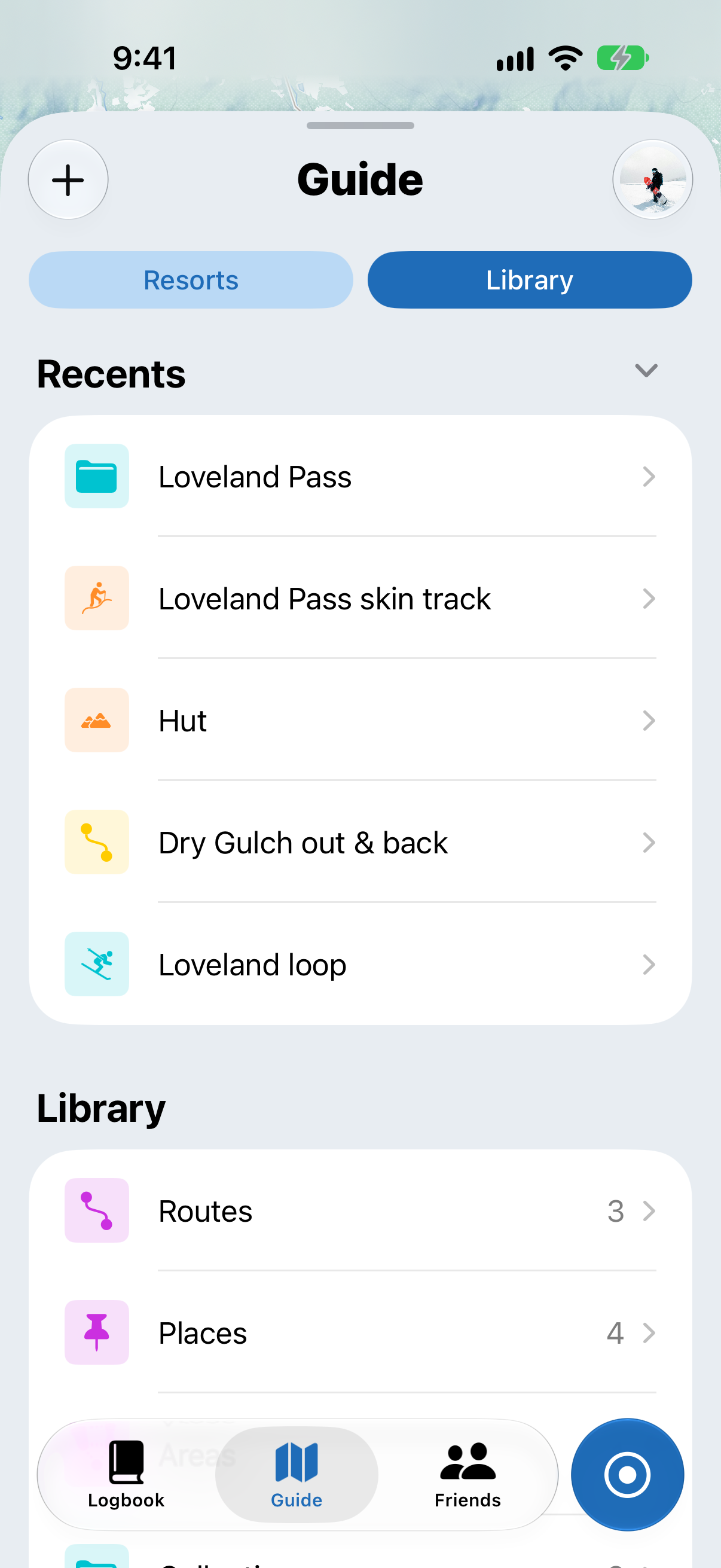
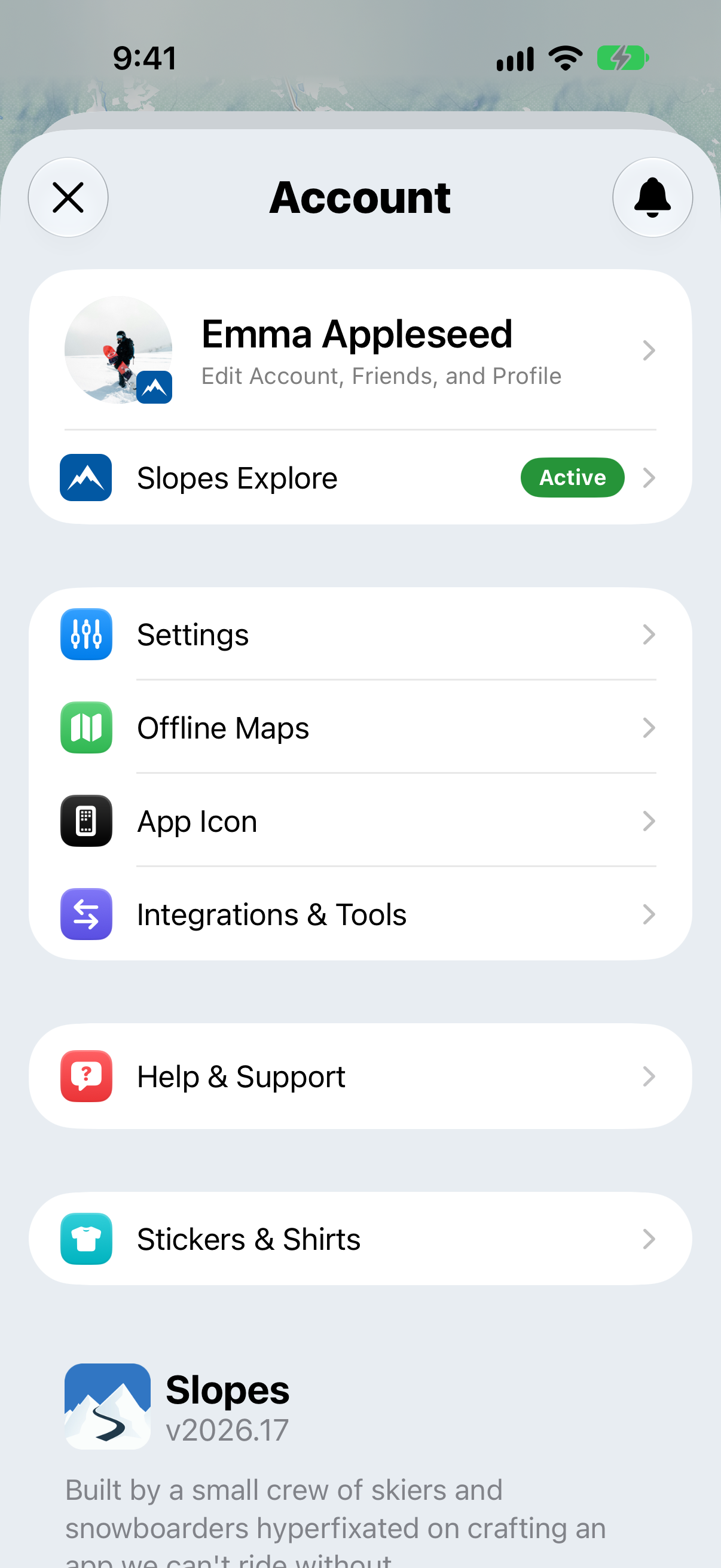
Looking for offline maps? They've moved to your account: tap your profile picture at the top right of the Guide tab, then tap Offline Maps.
Search
Tap the search button on the map to search everything in one place: your activities and trips, resorts, your library, and locations like towns, peaks and trailheads. Tap a category to narrow the results.
You can also type coordinates, or paste an Apple Maps or Google Maps link, to jump straight to that spot.
Map controls
On the left of the map you'll see the compass and the search button. On the right are the layers and 3D buttons.
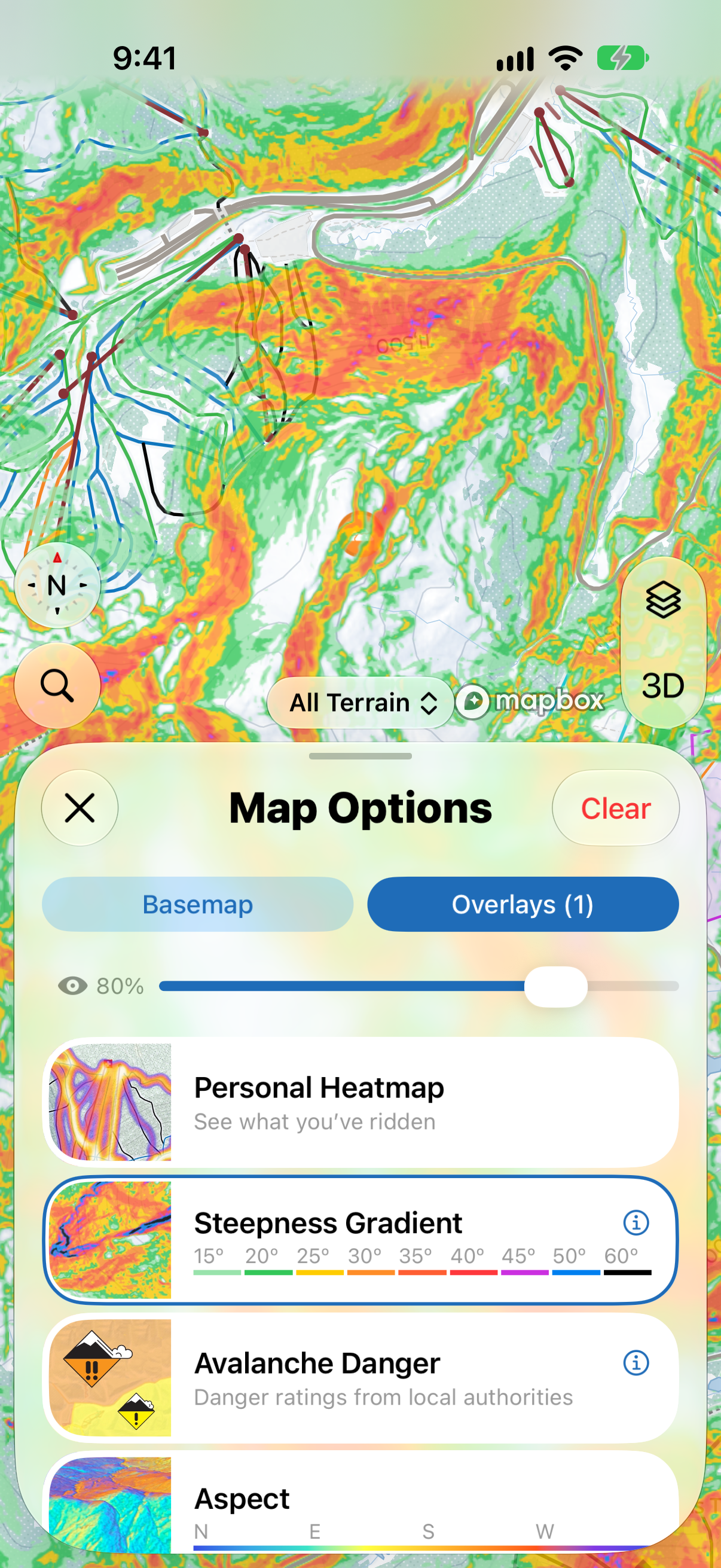
- Compass: shows which way the map is facing. Tap it to reset which way the map is facing.
- Layers: opens Map Options. Tap it again to close it.
- 2D/3D: switches between a flat and a 3D view