How do I enable the Insta360 x Slopes integration?
Connect your Slopes account to the Insta360 app to add your Slopes stats to your Insta360 videos, including your route on a map, speed, distance and elevation.
How to connect Slopes and Insta360
You connect the two apps from the Insta360 app. There's no Insta360 button in Slopes.
- Update the Insta360 app to the latest version
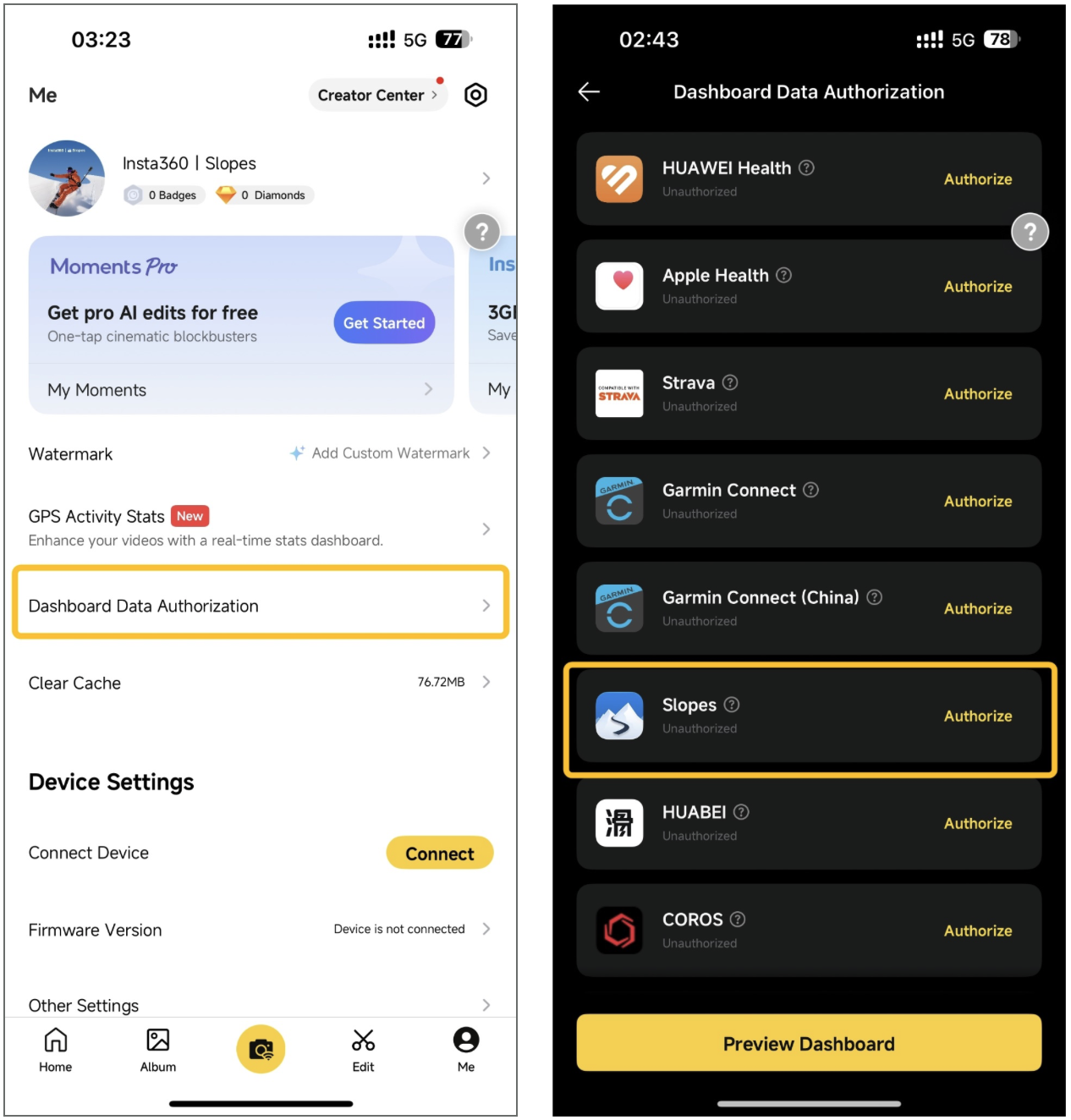
- Open the Insta360 app and tap Me
- Tap Dashboard Data Authorization
- Tap Authorize next to Slopes
- Sign in with your Slopes account and approve the connection
Adding your Slopes stats to a video
Once you're connected, edit a video in the Insta360 app as usual. The app matches your video to the Slopes day you recorded at the same time, so you can add your stats to the video as an overlay. For help with editing in the Insta360 app, visit Insta360 Support.
An FYI...
- Record with Slopes while you film: your stats can only be added to a video if you were recording with Slopes when you filmed it
- Ski, snowboard and backcountry days can all be used
- Your days need to be backed up to your Slopes account: check that Slopes Cloud Backup is on under Account → Integrations & Tools
- Only what your video needs: Insta360 only downloads the Slopes days that match the video you're editing, not your whole history
- One-way: your data goes from Slopes to Insta360. Nothing from Insta360 is imported into Slopes
- One account each: one Slopes account can be connected to one Insta360 account
What Insta360 receives
When you connect, Insta360 can see:
- Day summaries: date and time, resort, sport, distance, vertical and number of runs
- Run stats: distance, vertical, top speed and average speed
- Your GPS track, with altitude and speed