What's the difference between Routes, Places and Collections?
Your map library lives under Guide → Library, and it's made up of four things. The easy way to remember them: Routes are lines, Places are pins, Areas are shapes, and Collections are tags.
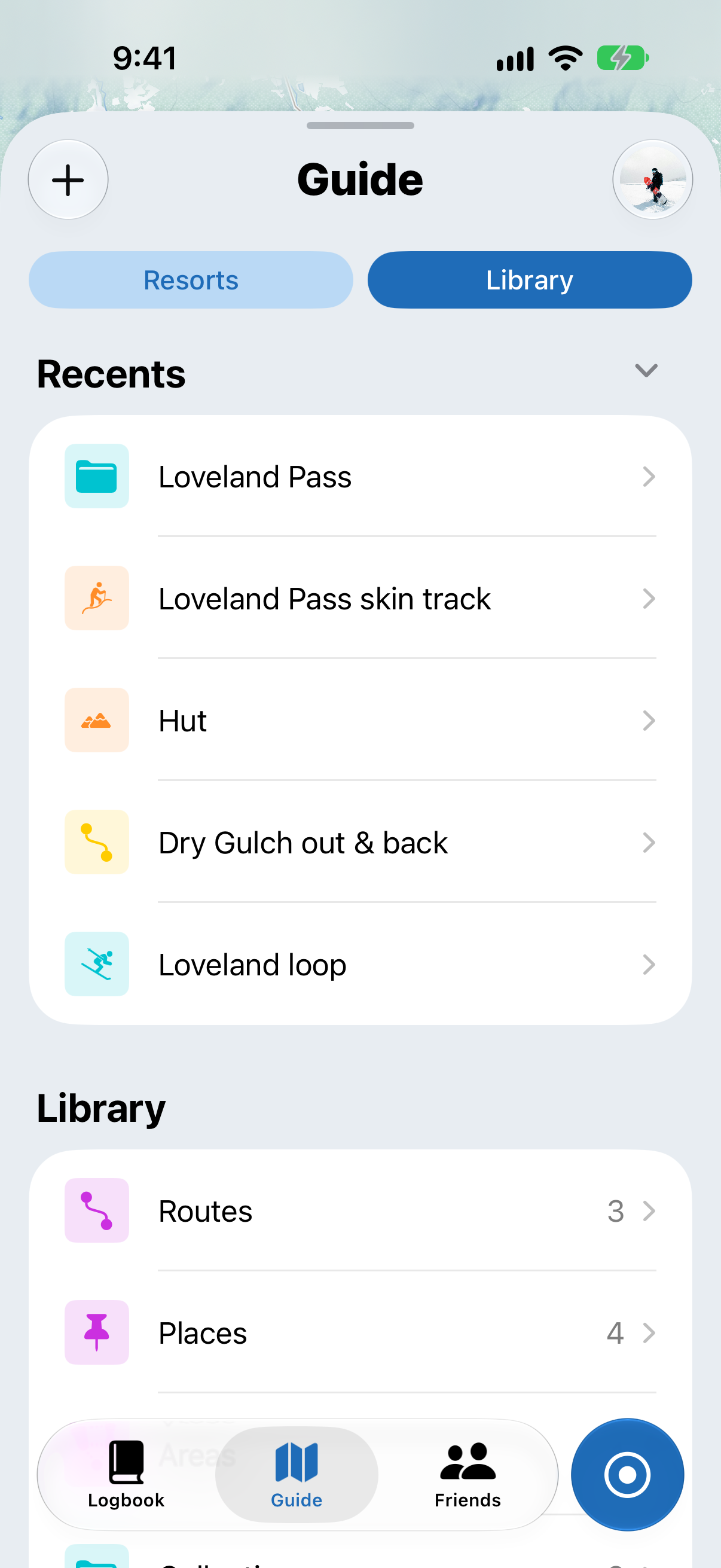
To add something, tap + at the top left of Guide → Library.

Building your library is free, with no limit on how many items you save. You can add notes to any route, place or area, to remember the details.
Routes
A route is a line: a path across the terrain. You can:
- Import routes and tracks from a GPX, KML or GeoJSON file
- Convert any lift or run from one of your past days. In playback, tap the … menu on a lift or run to save it as a route (or as a place).
- Draw one by hand in the app (requires Slopes Explore)

Places
A place is a pin: a single point on the map. You can drop one by:
- Long-pressing anywhere on the map. You can also start a route from there.
- Using your current location while you're recording
- Bookmarking a spot from the Replay screen
You can give each place its own icon and color.

Areas
An area is a shape: an outline around a piece of terrain, like a zone you want to ski or one you want to avoid. Each area shows its size, perimeter and slope.
You can draw an area in the app, or import one from a KML or GeoJSON file.

Collections
Collections group related routes, places and areas together. They work like tags rather than folders, so one item can be in as many collections as you like. For example, a route could be in both "Tree runs" and "Japan trip." Each item in your lists shows which collections it's in.

You can sort your lists by Name, Created or Recent. Tap the same option again to reverse the order.
To cut down on clutter, you can hide or show a single item, or a whole collection, on the map.
When you delete a collection, you can choose to delete just the collection, or the collection and everything in it.

Doing more than one at a time
Select several items in a list to add them to a collection, export them, hide or show them on the map, or delete them all at once.
